Integrations
Optimize your images everywhere you work. Install SEOPix on your favorite platform.
Shopify App
NEWScan your whole store in one click, then fix every product image in bulk: AI alt text, SEO filenames, compression, WebP conversion and resizing. Originals are backed up for 30 days and restorable in one click. No API token to copy — your account is created and linked automatically on install.
Install the app
Open the SEOPix listing on the Shopify App Store → Install → approve the requested permissions (read/write products and files).
The app opens inside your Shopify admin — everything happens there, you never leave Shopify.
Your account is created automatically
On install we create a SEOPix account from your store email — no token to copy, nothing to paste. New accounts start with 15 free credits.
If you already have a SEOPix account with that email, the store links to it instead and shares the same credit balance as the web app, WordPress plugin, PrestaShop module and Chrome extension.
Set your processing settings
Go to Settings in the app and pick how images should be processed. These settings apply to every Optimize and Fix all run:
- Output format — WebP (recommended, smallest files), JPEG (broadest compatibility), PNG (keeps transparency), or keep the original format.
- Max dimension — longest side: 1024 px (theme speed priority), 1600, 2048 px (Shopify recommended), 2700, or 4096 px for high-res zoom.
- Quality — 50 to 95. Default 85, the sweet spot between file size and visible quality.
- Alt text language — English, Français, Español, Deutsch, Italiano, Português, Nederlands or 中文. Filenames always stay in English for SEO; only the alt text is translated.
Click Save settings. You can change them anytime — they only affect future runs.
Scan your store
On the Dashboard, click Scan store. SEOPix reads your products and flags four problems per image:
- Missing alt text — invisible to Google Images and to screen readers
- Generic filename —
IMG_4523.jpgtells search engines nothing - Oversized — slows down your theme and hurts Core Web Vitals
- Not WebP — heavier than it needs to be
The scan is read-only: nothing is changed until you approve. Large catalogs are scanned up to the first 500 products.
Fix all — or review image by image
Bulk: click Fix all N images. The first time, a confirmation explains exactly what happens: images are replaced, originals are backed up 30 days, 1 credit per image, failures auto-refunded, variant links and gallery order preserved.
Runs process up to 50 images at a time to stay within Shopify rate limits — click again to continue where it stopped.
One by one: open Products and use the tabs (All / Needs work / Missing alt / Bad filename / Oversized / Not WebP / Optimized) to optimize a single image, or Restore it to the original.
Billing — inside Shopify
Open Billing in the app. Payment goes through Shopify Billing, on the same card you already pay Shopify with. Nothing to set up.
- Monthly: Starter $4.99 (100 credits) · Pro $9.99 (300) · Business $19.99 (1,000) · Agency $49.99 (10,000)
- One-time packs: 500 credits $14.99 · 1,500 $34.99 · 2,500 $59.99 · 5,000 $109.99 · 10,000 $189.99
1 credit = 1 image fully processed. Credits never expire and accumulate month to month. Cancel anytime — your remaining credits stay.
WordPress Plugin
NEWAutomatically optimize every image you upload to WordPress — compress, rename with SEO keywords, and generate alt-text using AI. Works with WooCommerce, Elementor, and any theme.
Install the plugin
From WordPress: Plugins → Add New → search "SEOPix" → Install → Activate
Or: install directly from the WordPress.org plugin page.
Get your API token
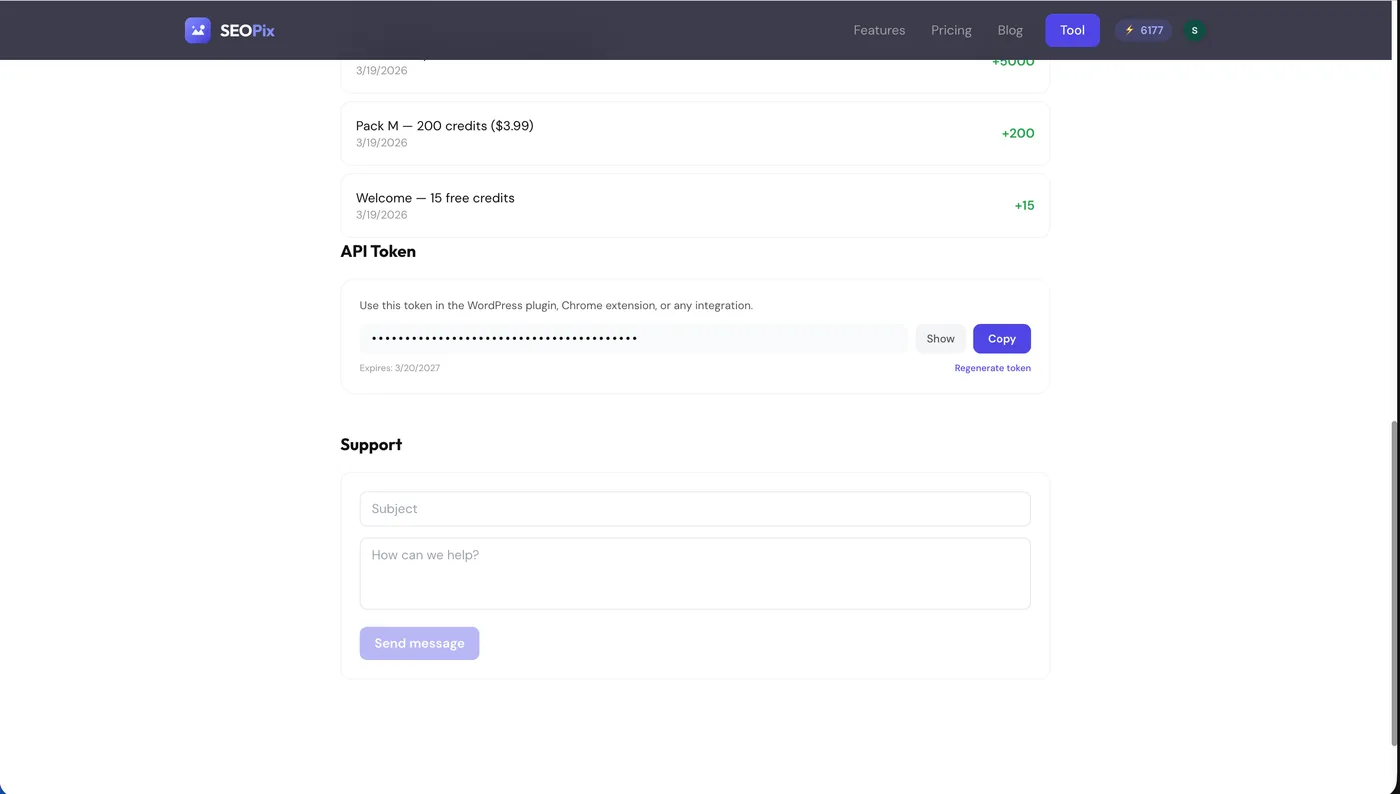
Go to your SEOPix Dashboard → scroll to "API Token" → Generate → Copy the token.
Don't have an account? Sign up free — you get 15 credits.
Configure
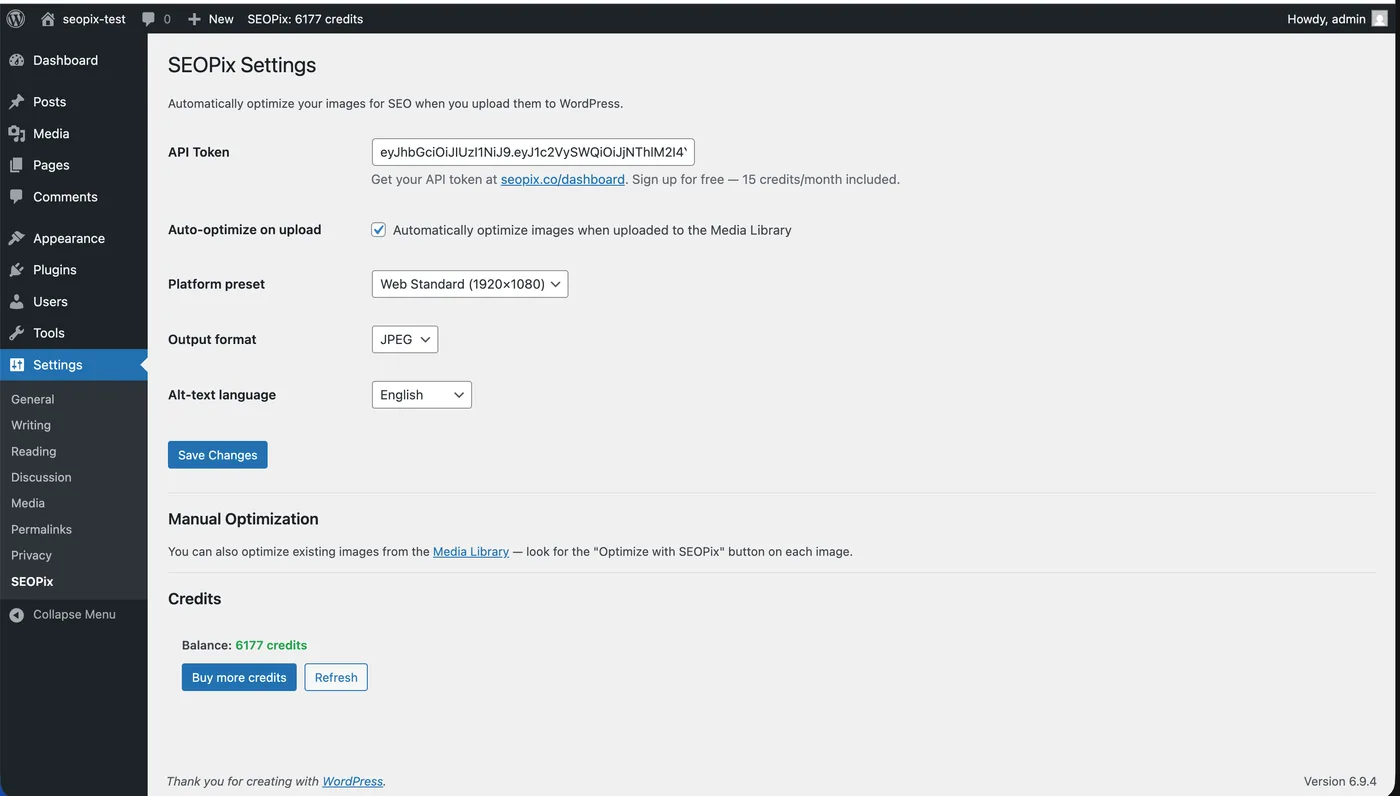
In WordPress: Settings → SEOPix → paste your token → choose preset, format, language → Save.
Done!
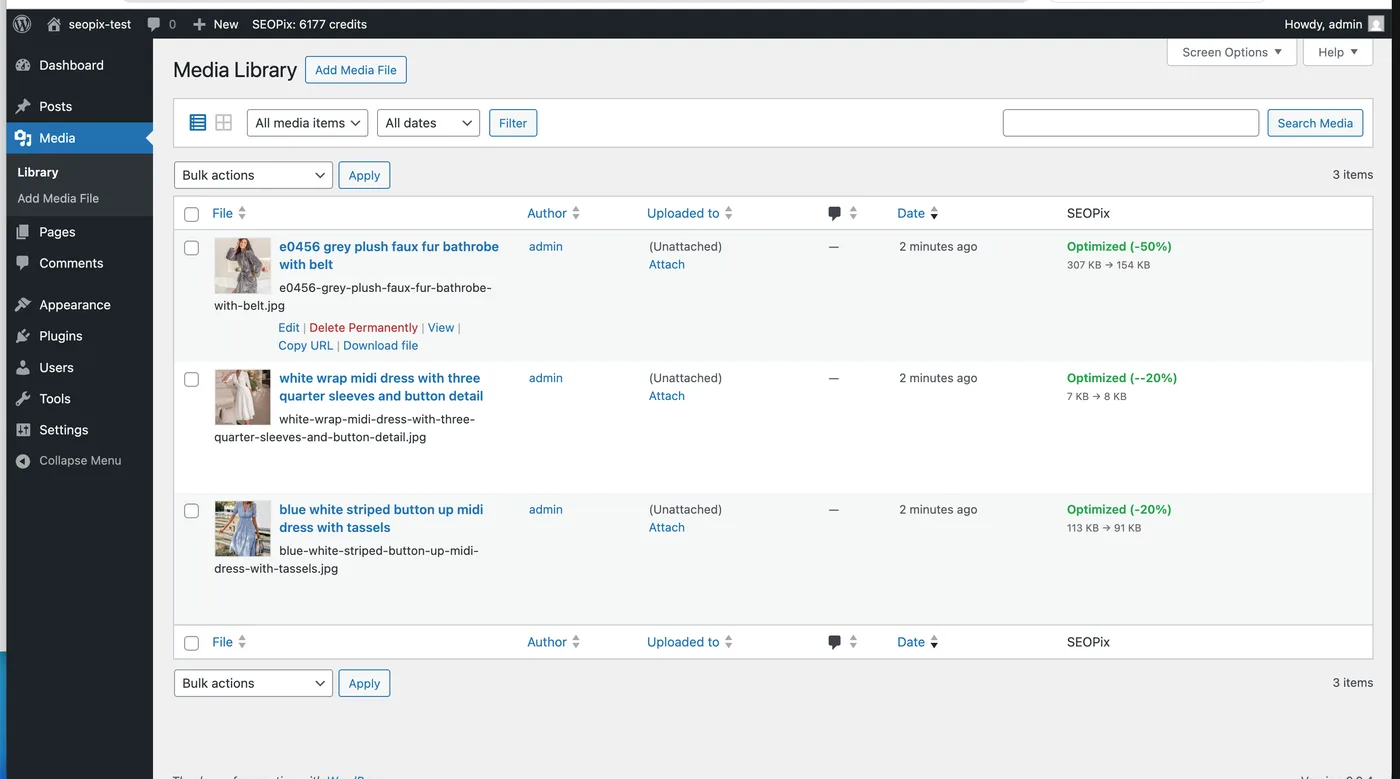
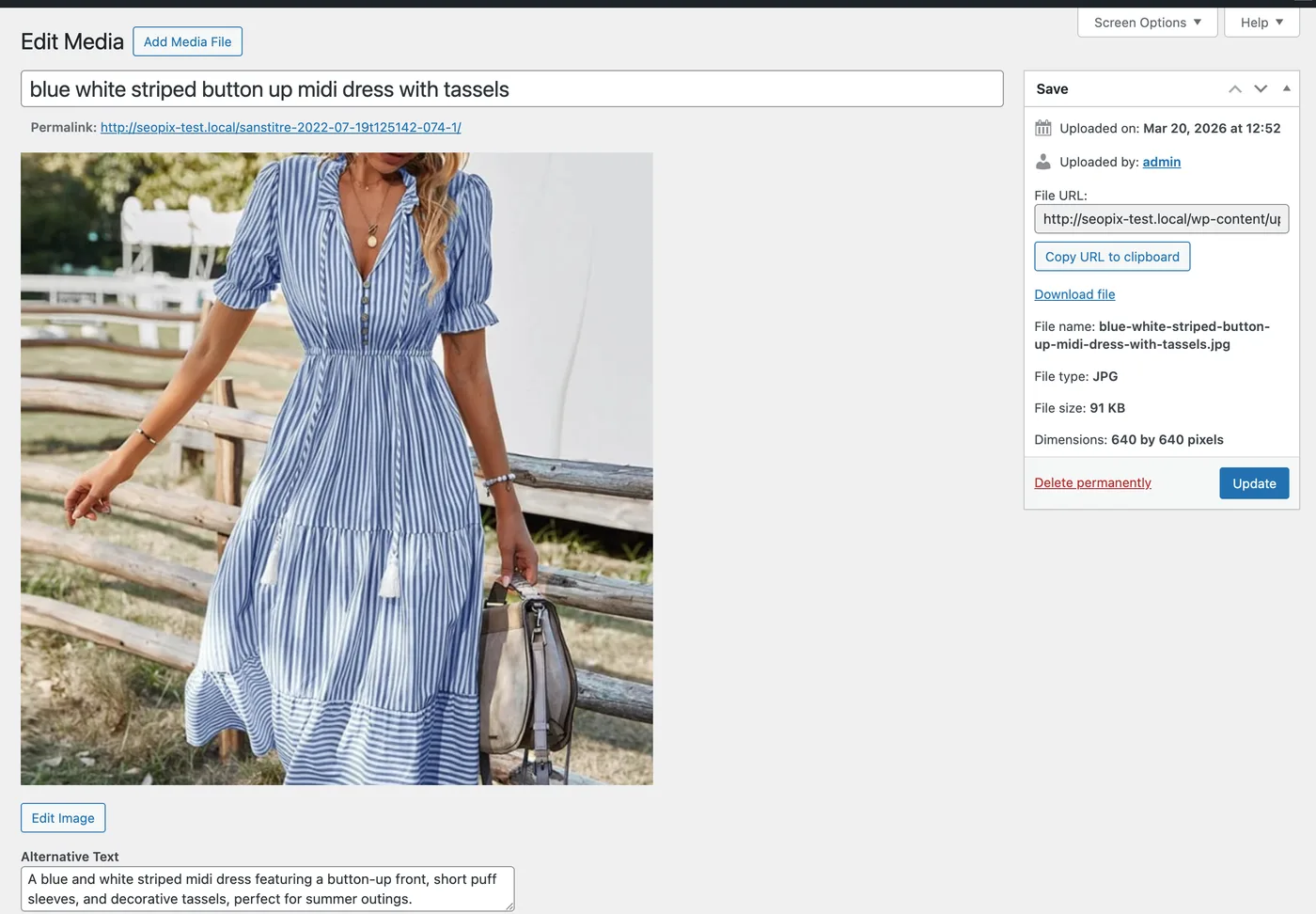
Every image you upload is now automatically compressed, renamed with SEO keywords, and gets alt-text. Your credit balance shows in the admin bar.

For existing images: Media → Library (list view) → click "Optimize" per image, or use bulk action.
Chrome Extension
NEWOptimize images from any webpage. Right-click any image, or scan an entire page to batch-optimize all product photos.
Install
Go to the Chrome Web Store → click "Add to Chrome".
Log in
Click the SEOPix icon in your browser toolbar → Sign in with your SEOPix account (email or Google).
Optimize
Upload images directly, scan the current page for product photos, or right-click any image → "Optimize with SEOPix".
PrestaShop Module
Automatically compress, generate alt-text, and fill SEO fields for your product images. Works with PrestaShop 8+. One image upload = compression + alt-text + product name + meta title + meta description + friendly URL.
Install the module
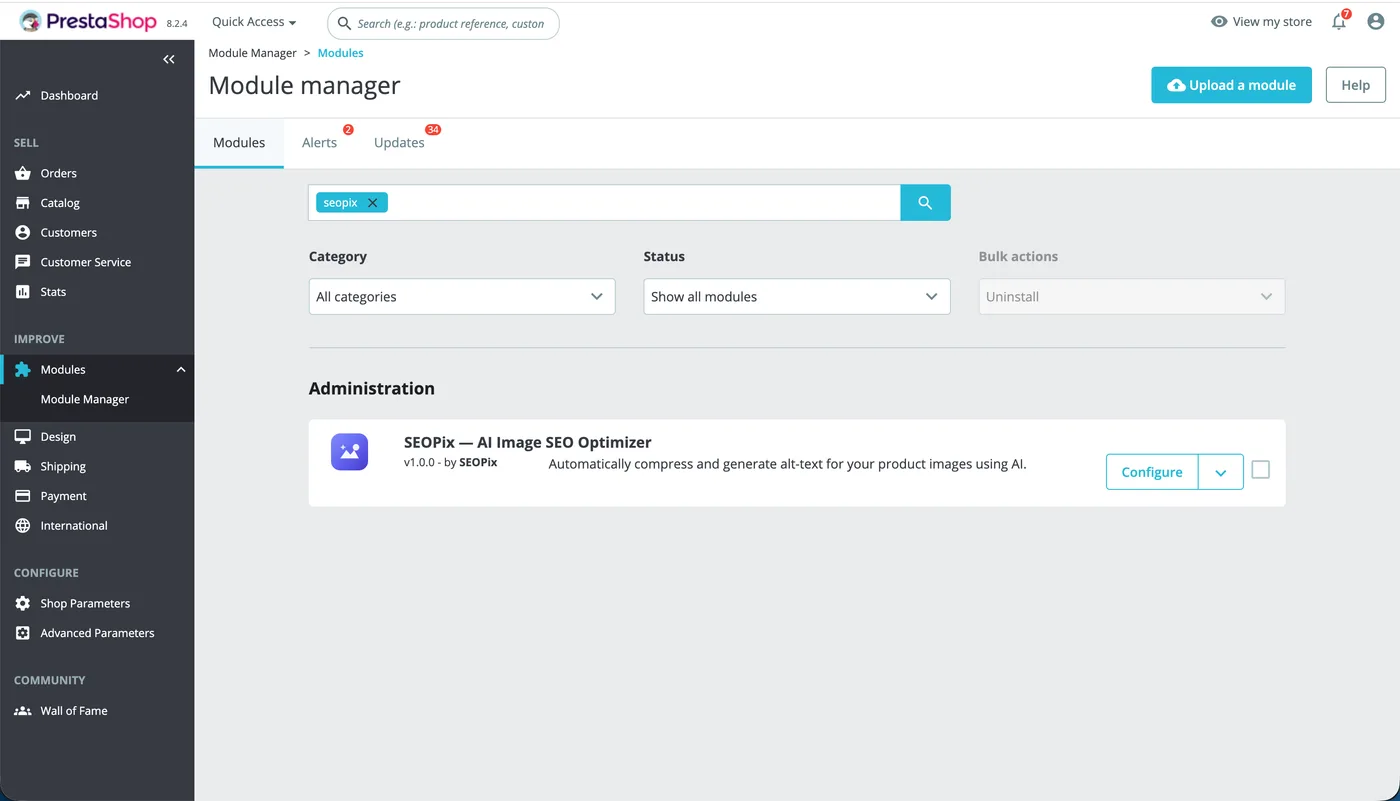
Then in PrestaShop admin: Modules → Module Manager → Upload a module → select the downloaded ZIP.
Get your API token
Go to your SEOPix Dashboard → scroll to "API Token" → Generate → Copy the token.
Configure
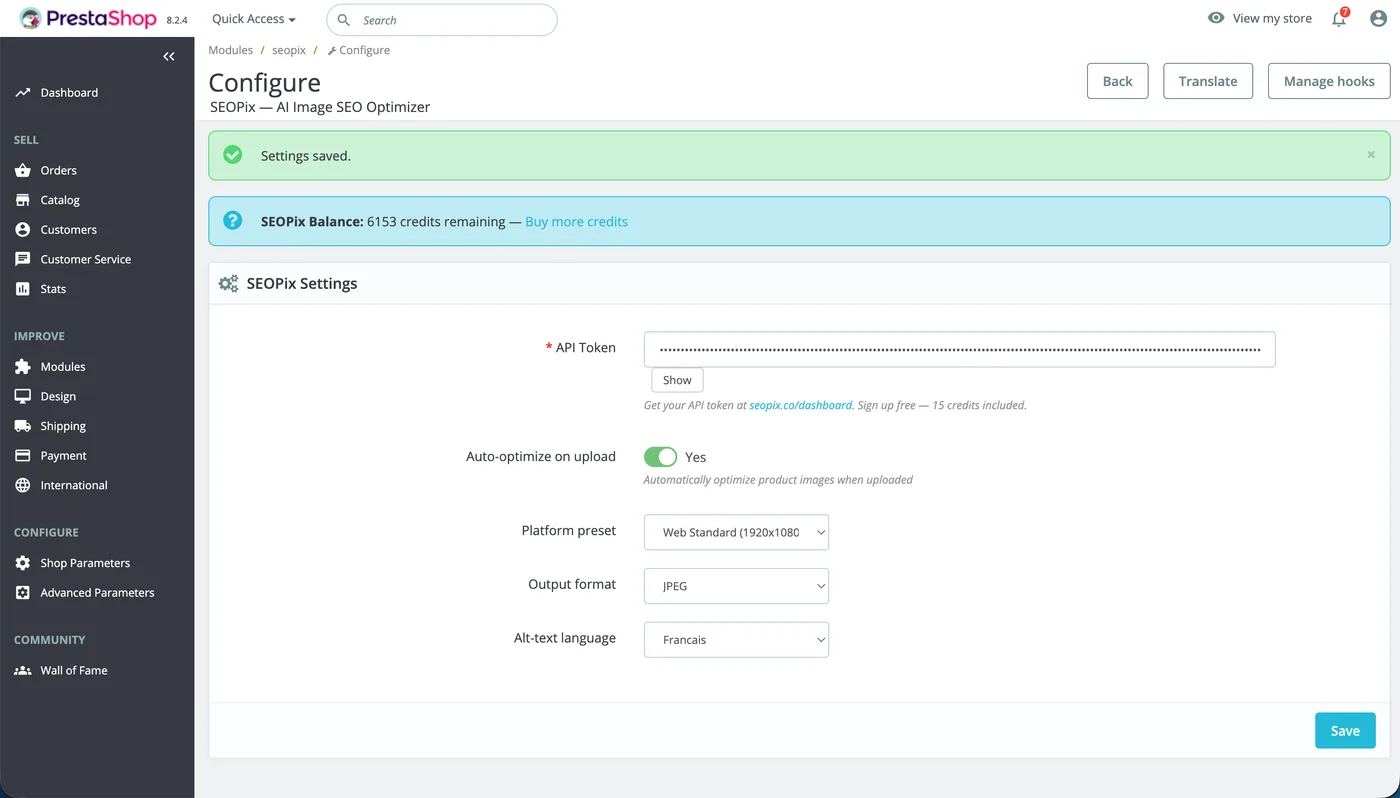
In PrestaShop admin: Modules → SEOPix → Configure → paste your token → choose preset, format, language → Save.
Upload product images
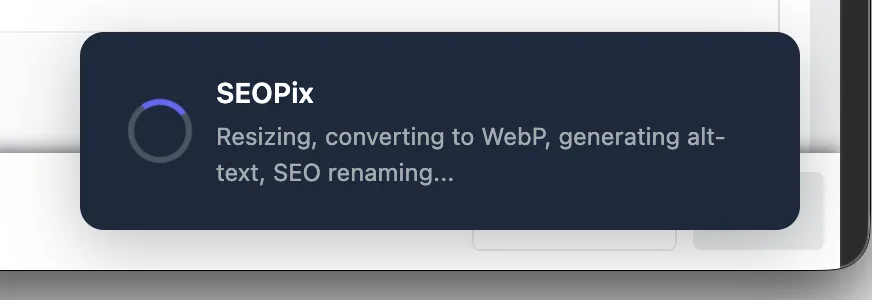
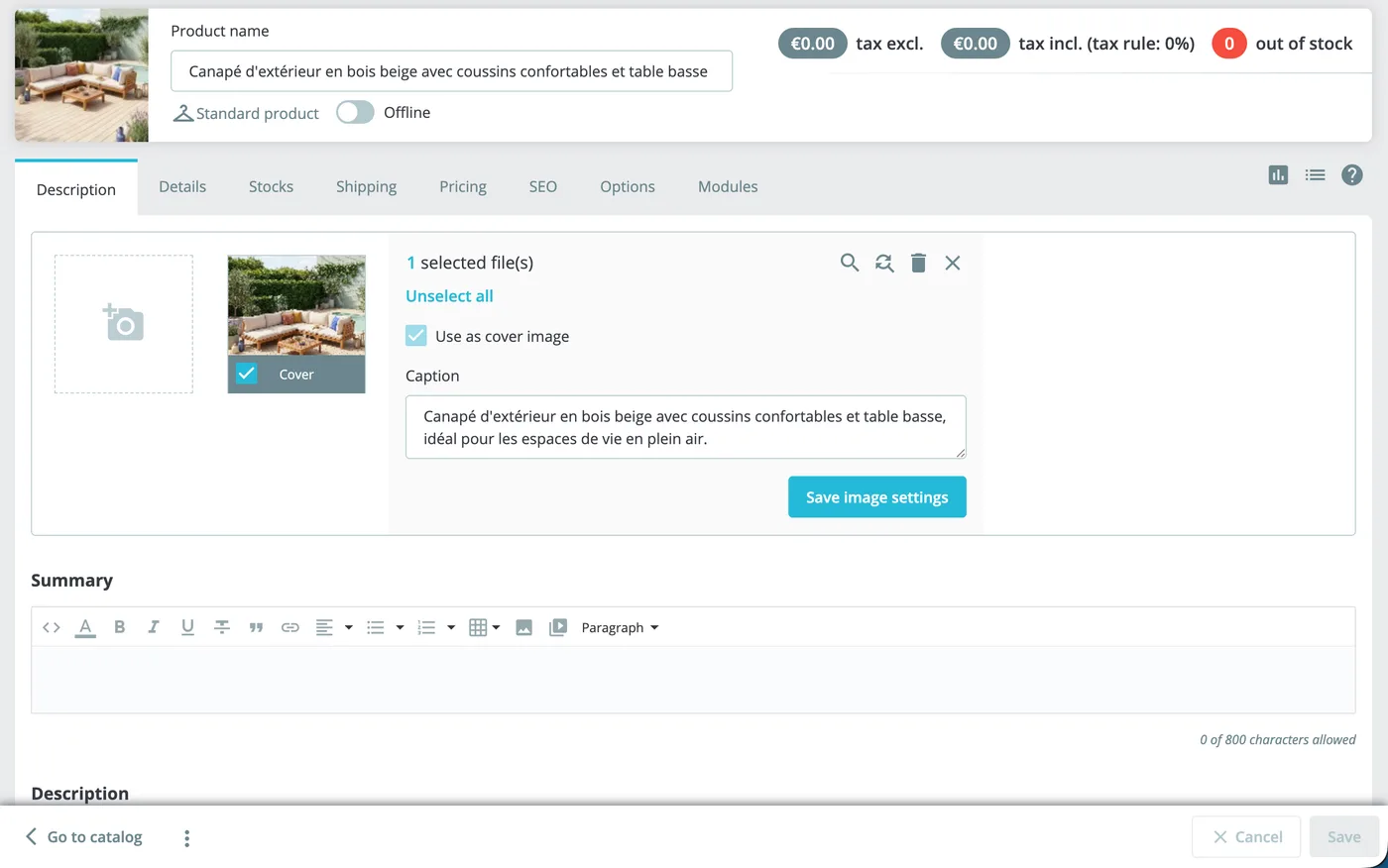
Go to Catalog → Products → open any product → Images tab → upload a photo. SEOPix optimizes it automatically.
See the results
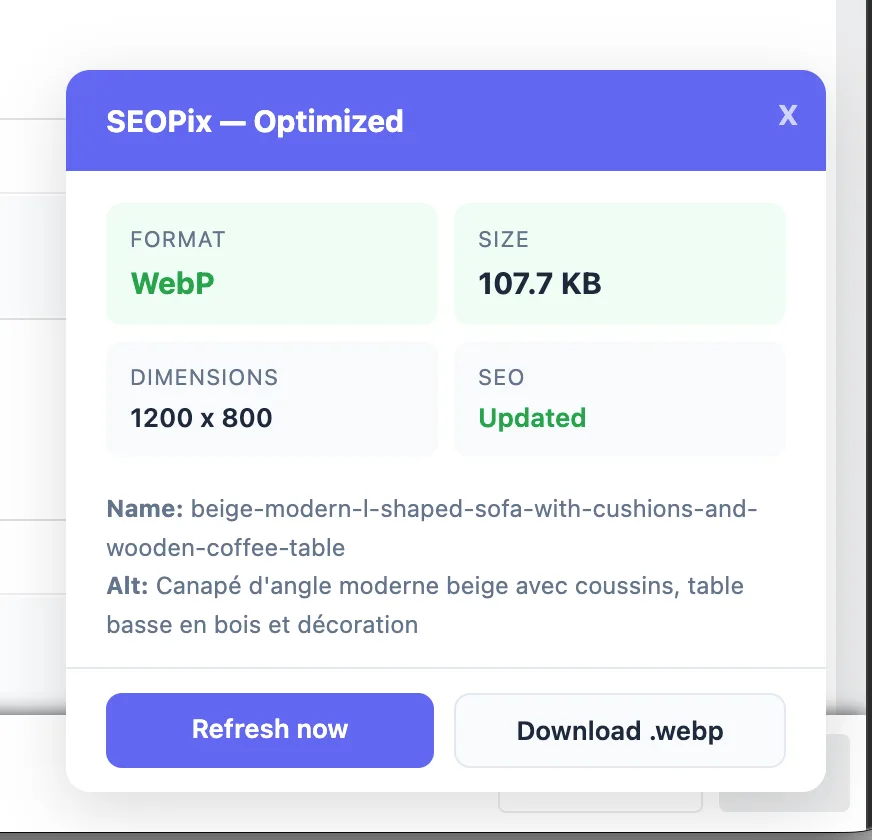
After upload, a toast shows compression stats. Refresh the page to see:
- Image compressed (up to 60% smaller)
- Alt-text / caption filled automatically
- Product name, meta title, meta description, friendly URL filled if empty
More integrations coming soon
API
REST API for custom integrations
FAQ
What happens to my original images?
The original file is replaced with the optimized version. Filename, alt-text, and title are updated automatically. On Shopify, every original is also backed up for 30 days and restorable in one click from the Products page.
What if I run out of credits?
Images upload normally but won't be optimized. You'll see a warning. Buy more credits at seopix.co/pricing — or, on Shopify, directly in the app's Billing tab.
Does the WordPress plugin work with WooCommerce?
Yes — WooCommerce product images go through the Media Library, so they're automatically optimized.
Does replacing images on Shopify break my product pages?
No. Variant links and gallery order are preserved, and the new image is only published once it's ready. The image URLs change, so Google may take a few days to re-index them.
Do I need an API token for the Shopify app?
No. Unlike the WordPress and PrestaShop plugins, the Shopify app links your account automatically on install using your store email.
Is my data secure?
Images are processed and deleted immediately. We don't keep your images — the only exception is the Shopify restore backup, kept so you can undo an optimization within 30 days.
Can I use multiple integrations with the same account?
Yes — your credits work across the web app, Shopify app, WordPress plugin, PrestaShop module and Chrome extension. They all share the same balance.